
Secure WordPress
WordPress absichern: Datei-Rechte mit chmod/chown, wp-config-Tweaks, Wordfence, UpdraftPlus, HTTP-Security-Header in Apache und alte TLS abschalten.
File permissions
find . -type d -exec chmod 755 {} \; # Change directory permissions rwxr-xr-xfind . -type f -exec chmod 644 {} \; # Change file permissions rw-r--r--Ownership
Wer den Server zusätzlich absichern will, sollte auch seinen SSH-Server absichern.
During setup:
chown www-data:www-data -R * # Let Apache be ownerAfter setup:
chown root:root -R * 					# Let your useraccount be owner
chown www-data:www-data wp-content -R	# Let apache be owner of wp-content
chown www-data:www-data  wordfence-waf.php

find . -type d -exec chmod 755 {} \; # Change directory permissions rwxr-xr-x
find . -type f -exec chmod 644 {} \; # Change file permissions rw-r--r--

# .wordfence-waf.php
chmod 644 wordfence-waf.php

# .htaccess
chown root:root .htaccess
chmod 644 .htaccess

# wp-config.php
chown root:root wp-config.php
chmod 644 wp-config.php

# to test:
#   click on "Wordfence" - "Firewall" --> should be activated
#   activate/deactivate plugin
#   install / uninstall plugin
Special files
config – so you dont need to enter username password for installing plugins
So kannst du auch passende WordPress-Plugins bequem direkt aus dem Backend installieren.
define('FS_METHOD', 'direct');.htaccess file in main directory
Copy your htaccess file to a backup directory
chmod 644 .htaccessAfter each modification (e.g. wordfence firewall optimization) make a backup of the .htaccess file.
File permissions
Install and configure Wordfence
Install and configure UpdraftPlus
Memory limit (e.g. for woocommerce)
Edit the wp-config.php file on your WordPress site. It is located in your WordPress site’s root folder.
Next, you need to paste this code in wp-config.php file just before the line that says ‘That’s all, stop editing! Happy blogging.’
define( 'WP_MEMORY_LIMIT', '256M' );HTTP Headers
Check your site (mehr dazu auch unter Tools für ein Security-Audit):
Enable headers for apache:
a2enmod headersPaste this into your VirtualHost config (nano /etc/apache2/sites-enabled/...):
   Header always set Strict-Transport-Security "max-age=63072000; includeSubDomains"
   Header always set X-Frame-Options "SAMEORIGIN"
   Header always set X-Xss-Protection "1; mode=block"
   Header always set X-Content-Type-Options "nosniff"
   Header always set Referrer-Policy "strict-origin"
   Header always set Permissions-Policy "geolocation=(),midi=(),sync-xhr=(),microphone=(),camera=(),magnetometer=(),gyroscope=(),ful>
   Header always set Content-Security-Policy "default-src 'self'; font-src *;img-src * data:; script-src *; style-src *;"
Restart server
service apache2 restartRemove old security protocols (TLS 1.1, etc.)
e.g. if you use apache and Let’s Encrypt you can edit the by modifying some lines in the configuration (wie du ein Let’s Encrypt Zertifikat für Apache einrichtest, liest du im verlinkten Beitrag):
Edit the include file:
nano /etc/letsencrypt/options-ssl-apache.confModify the file to include the following:
SSLProtocol all -SSLv2 -SSLv3 -TLSv1.1 -TLSv1.2Test
check on one of the follwoing sites:
Mehr aus „Security & Datenschutz"
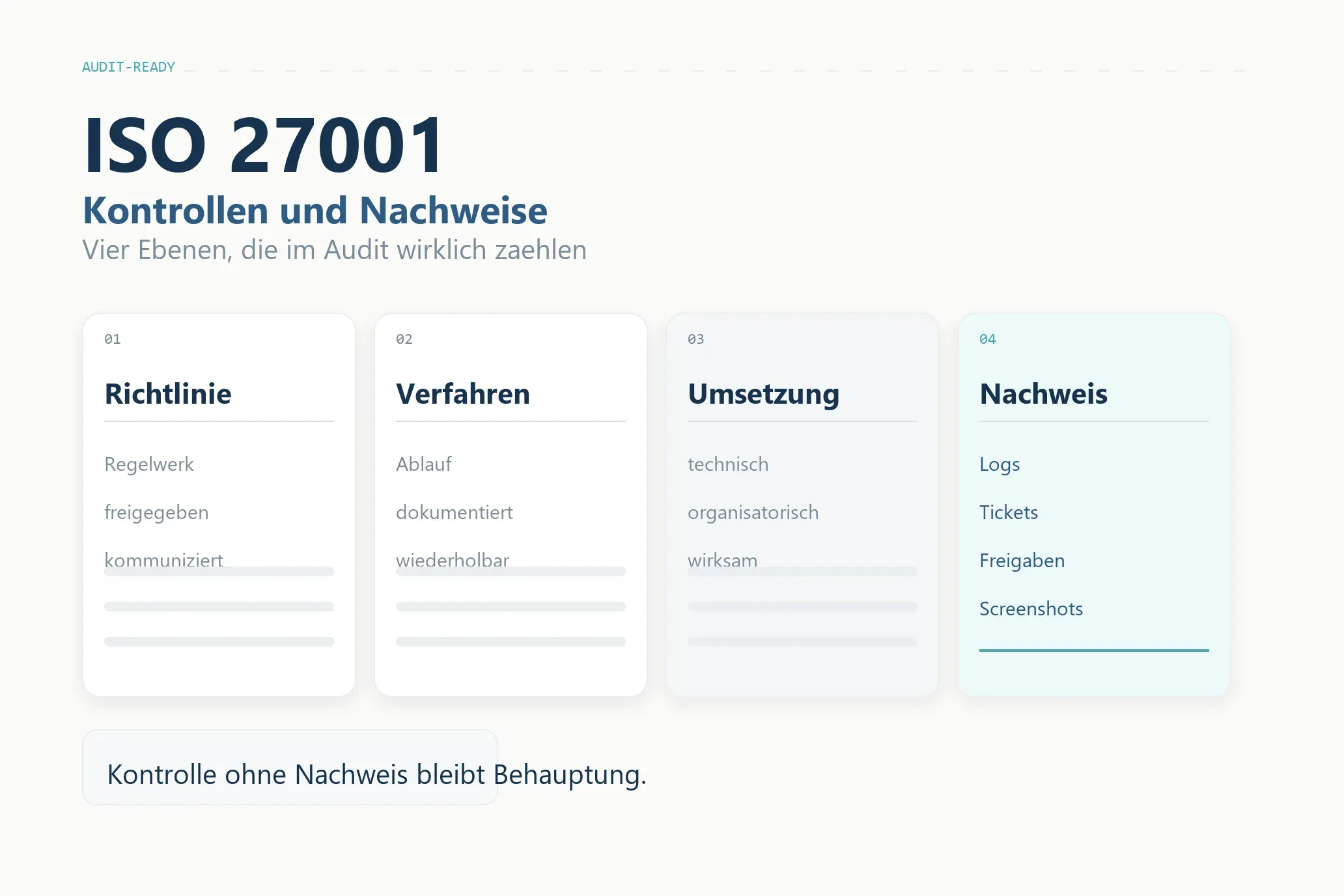
ISO 27001: 16 Kontrollbereiche und die Nachweise, die im Audit zählen
ISO 27001 verständlich erklärt: die 16 zentralen Kontrollbereiche mit den Richtlinien, Verfahren und Nachweisen, die im Audit zählen.
Weiterlesen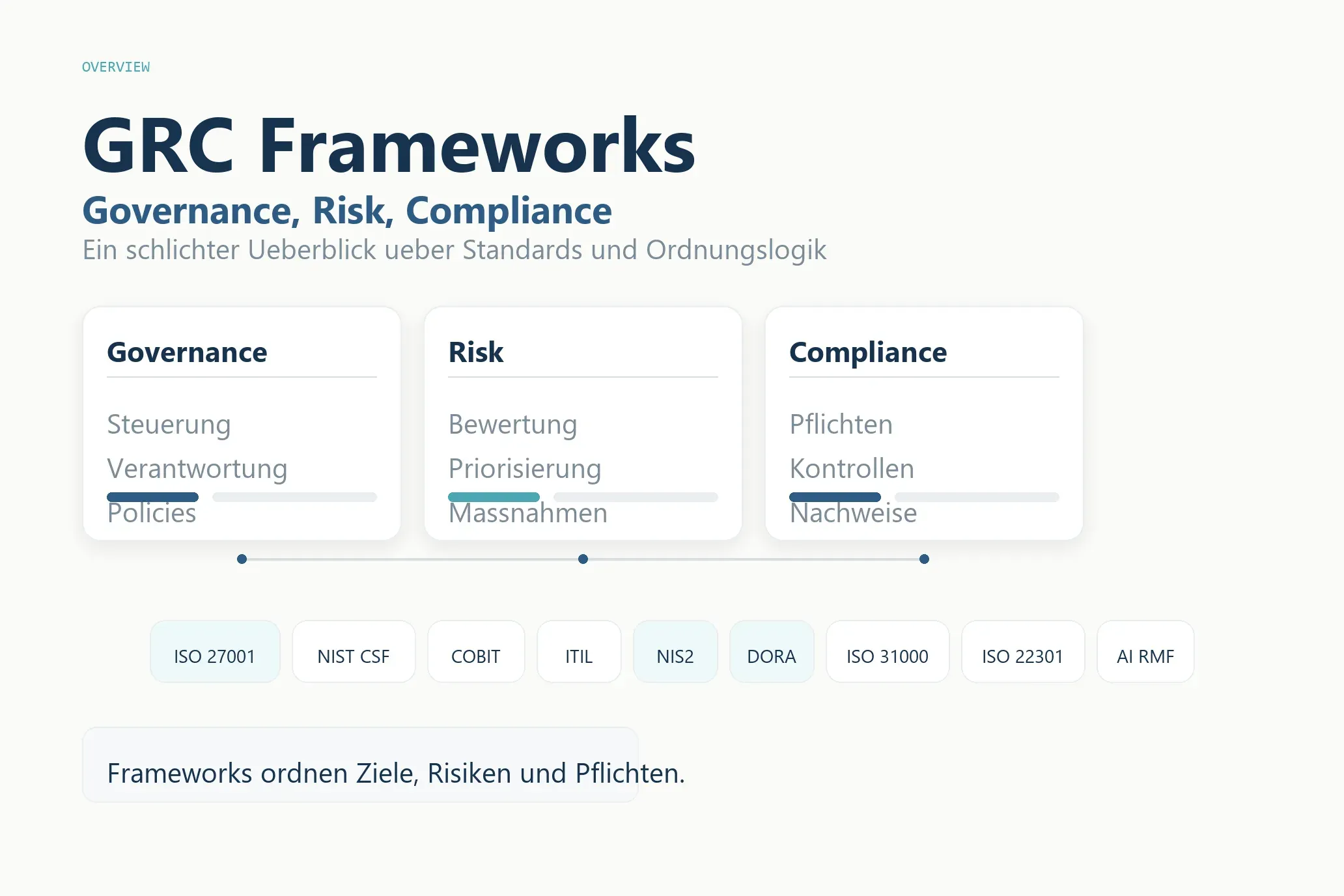
GRC-Frameworks im Überblick: die wichtigsten Standards für Governance, Risk und Compliance
GRC-Frameworks kompakt erklärt: ISO 27001, NIST, COBIT, ITIL, NIS2, DORA und mehr – für wen sie gedacht sind und welchen Nutzen sie im Alltag bringen.
WeiterlesenChatGPT für CISOs
ChatGPT für CISOs: So nutzt Du das LLM im ISMS für Richtlinien, Risikoanalysen und NIS2-Umsetzung, inkl. praxiserprobter Prompts und ISO27001-Workflow.
WeiterlesenÜber diesen Blog
Ein Sammelsurium an Denkanstößen.
Hier sammle ich Wissen, Argumente und Links zu allem, was mich beschäftigt — von Technik über Küche bis Nachhaltigkeit. Beruflich berate ich zu Cybersecurity.